
Lately, I’ve been spending most of my time working in Claude Code, and one of my favorite parts of that shift has been realizing how quickly I can build small tools around the way I already work.
I’m a systems thinker by nature. I like noticing repeated friction, turning it into a pattern, and then building something that makes the next version easier. This week, I built two small tools that helped me move faster, communicate more clearly, and share work with my team in a more useful way.
1. A prototype annotation tool

The first tool I built was an annotation system for my Claude Code prototypes.
When I’m presenting design work, I often want to add context directly into the prototype: why a decision was made, what needs feedback, what’s still in progress, or where someone should pay attention. I wanted something that felt lightweight and familiar, so I modeled part of the interaction after Figma comments — including keyboard shortcuts and a commenting flow that felt easy to pick up.
The goal was to make prototypes more discussable.
Instead of presenting a prototype and keeping all the context in my head, I wanted to build the context into the prototype itself. That way, comments could live alongside the experience, and other people working on the same branch could add their own notes too. This made the prototype feel less like a static artifact and more like a shared working space.
A few things this helped with:
Giving reviewers clearer context while walking through work
Making feedback easier to anchor to specific parts of the experience
Helping teammates add comments directly into the branch
Reducing the need to explain every decision live during a presentation
It was a small tool, but it solved a real workflow problem: prototypes often need commentary, not just interaction.
2. A daily update tool for Slack
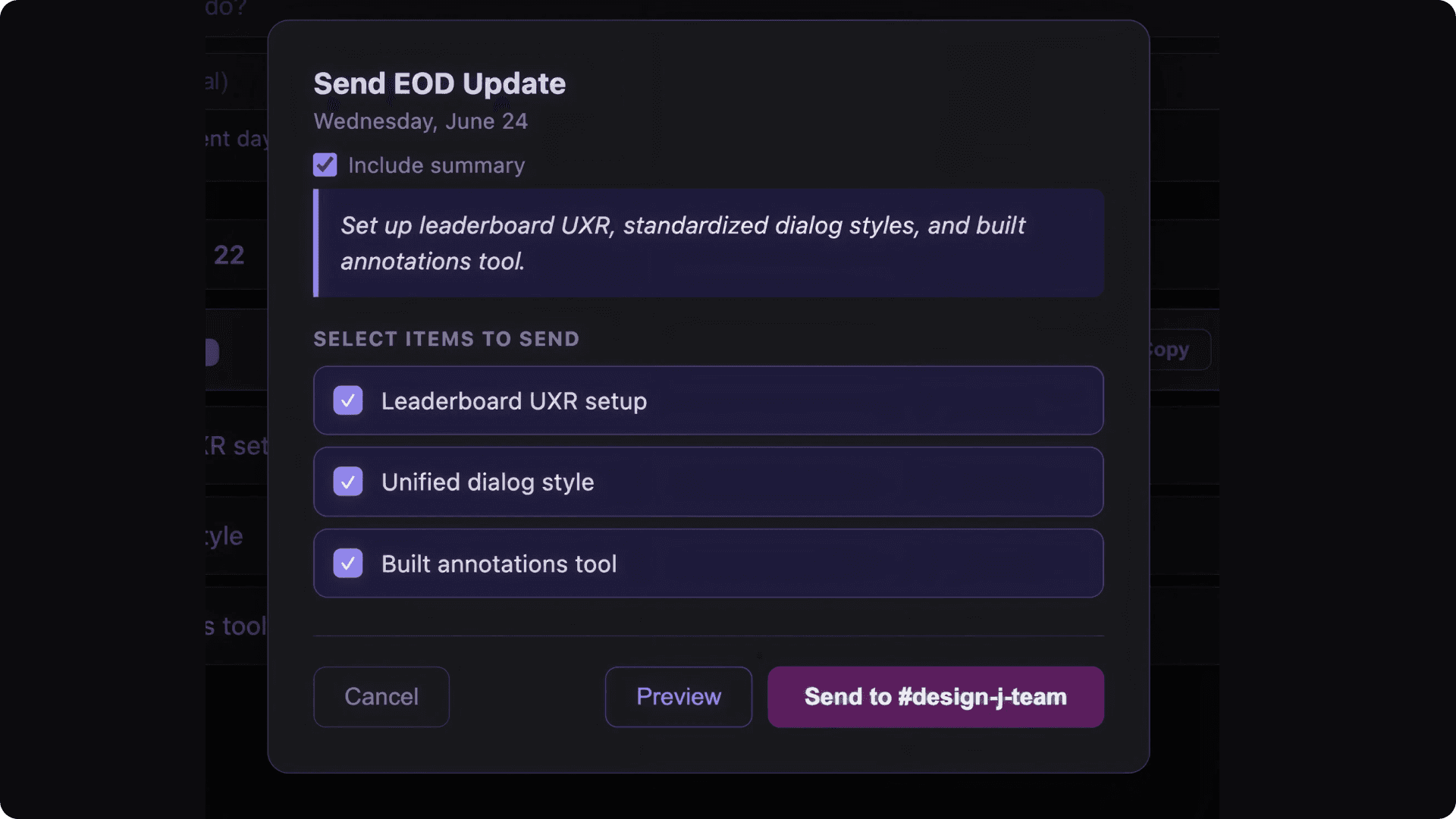
The second tool I built was a daily updates tool connected to Slack.
I wanted a faster way to share what I was working on with my team without overthinking the format every time. The tool lets me type in a few things I worked on, attach a link, generate a preview, and send the update to a specific team Slack channel through the MCP gateway.
I also added a few controls so the update could flex depending on what I needed:
Turn preview on or off
Add or remove bullets
Include a link when relevant
Send the update directly to the right Slack channel
The reason I cared about this tool is pretty simple: team communication is easier when the update is easy to make. I don’t want to spend extra energy formatting a status update when the actual value is in sharing progress, surfacing decisions, and making work visible. This tool helped remove some of that friction.
It also gave me a repeatable structure for communicating what changed, what moved forward, and what others might need to know.
Why these tools matter to me
Neither of these tools is huge on its own. That’s kind of the point.
What I’m finding exciting about working in Claude Code is that I can now build small, useful workflow tools as soon as I notice a pattern. Instead of waiting for a perfect system, I can prototype my own.
That matters because a lot of design work happens in the in-between spaces: explaining decisions, getting feedback, sharing updates, helping others understand what changed, and keeping momentum across a team.
These tools helped me make those moments easier. They also reflect the kind of work I naturally enjoy: building systems that help people move faster with more clarity and less friction.
I’m starting to share more of these small tools with my team, not because they’re polished products, but because they are useful working artifacts. They show how AI-assisted prototyping can support not just the final design, but the messy, collaborative process around it.
If you want to try the prompt for the Slack updates connector or the prototype annotation tool, check it out below.
[Ready to paste into Agent]
Add an interactive annotation system to a prototype, similar to how Figma's annotation feature works. Here's the full spec:
Toggle⌘\ (Mac) / Ctrl+\ (Windows) toggles annotation mode on and off. Skip the shortcut if focus is inside an input, textarea, or contenteditable element. No-op on viewports narrower than 1240px. Show a brief toast ("Annotations on ⌘" / "Annotations off ⌘") that fades after 1.5 seconds.
Adding pins
When mode is on, the cursor becomes a crosshair. Click anywhere to drop a numbered purple pin. An inline popover opens immediately — type your note and press Enter to save, or Escape to cancel.
Editing, moving, and deleting
Click an existing pin to reopen its popover. Drag a pin to reposition it anywhere on screen. Use the trash icon in the popover, or Delete/Backspace while the popover is open, to remove a pin. A "Clear all" button appears in the bottom-right when mode is on and pins exist.
Display
Hover over a saved pin to see its note. Tooltip uses max-content width capped at 240px — short notes stay on one line, long ones wrap. Pins use position: fixed with viewport percentage coordinates.
Persistence
Store pins in localStorage keyed by page slug (proto-annotations-${slug}). Each person's annotations are local to their own browser so multiple people can annotate independently.
Remove any existing hardcoded annotation system before adding this. No persistent indicator on any UI buttons showing annotation mode state. Annotation mode is desktop-only (no-op under 1240px).